
Merge & conflicts
A conflicted merge is three steps, and Porcelain gives each one a surface.
1. Notice
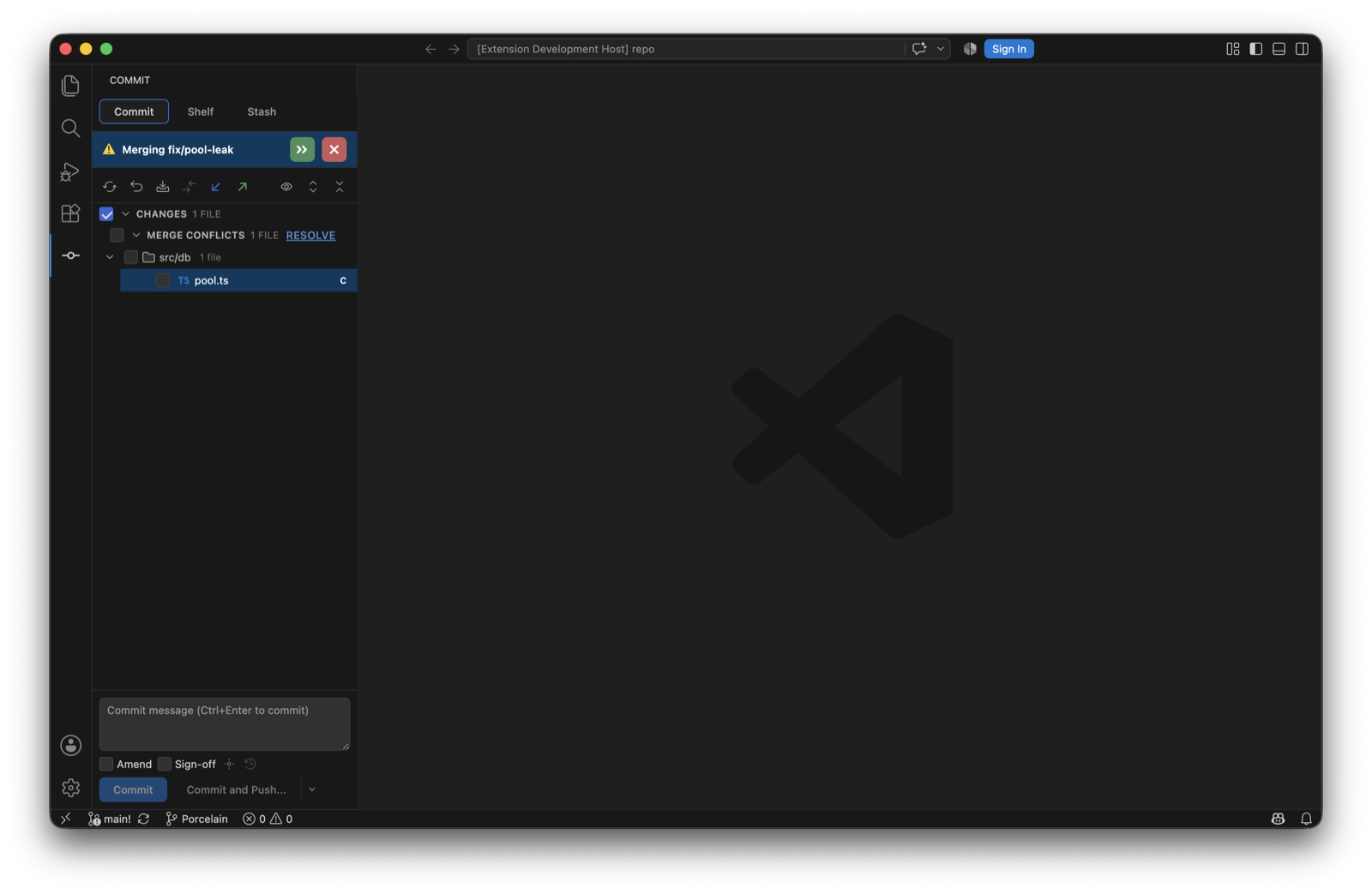
Unmerged files appear as a Merge Conflicts group nested inside Changes, the way IntelliJ shows them, so the same file never appears twice. A banner names the branch being merged and offers to continue or abort.
2. Triage
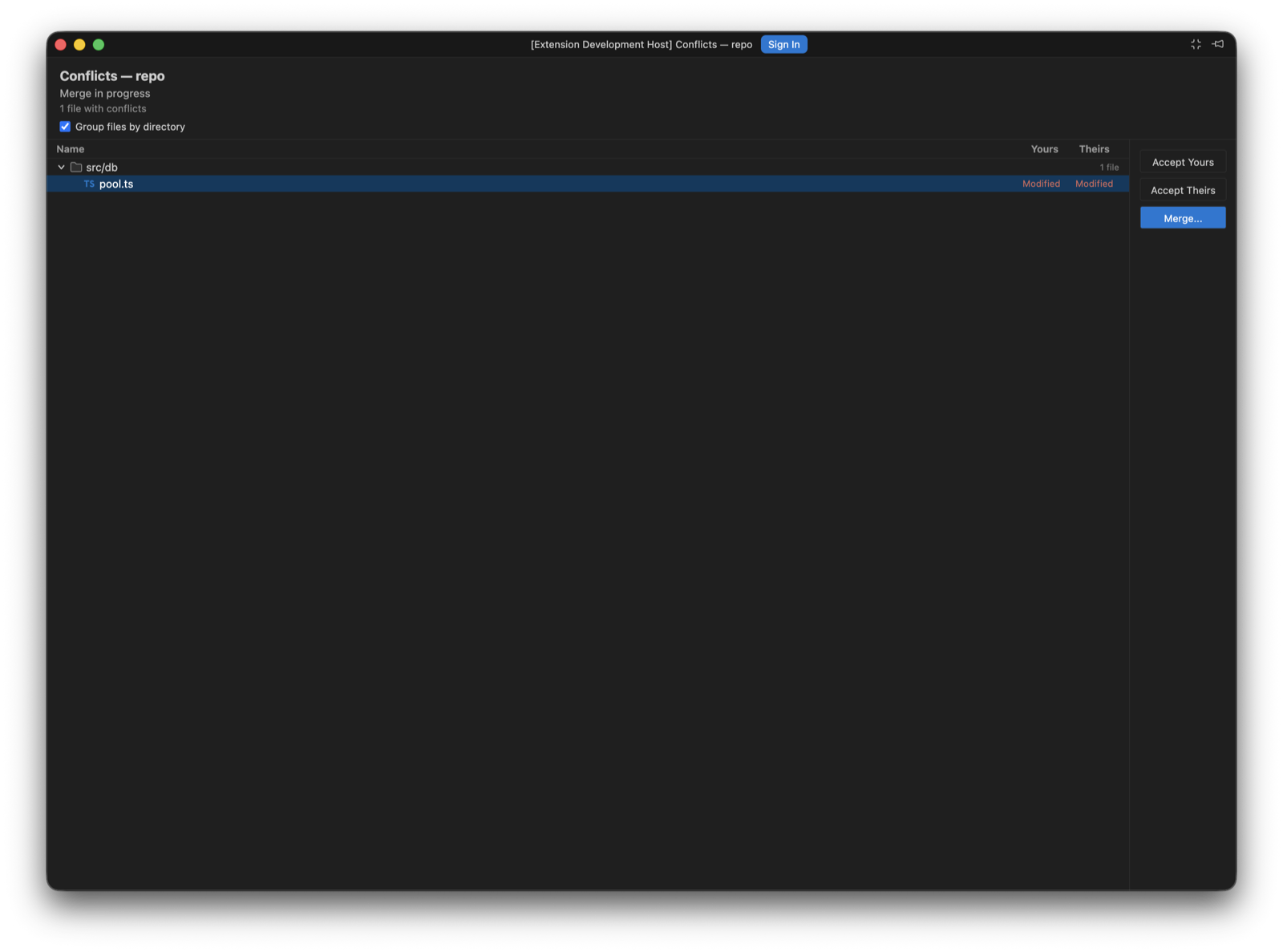
Resolve opens the conflict list in its own compact window, showing how each side touched every file. Take one side wholesale with Accept Yours or Accept Theirs, or Merge to work through it.
3. Resolve
Double-clicking a conflicted file opens the three-way editor in its own window: your side on the left, the working result in the middle, theirs on the right, in IntelliJ's order.
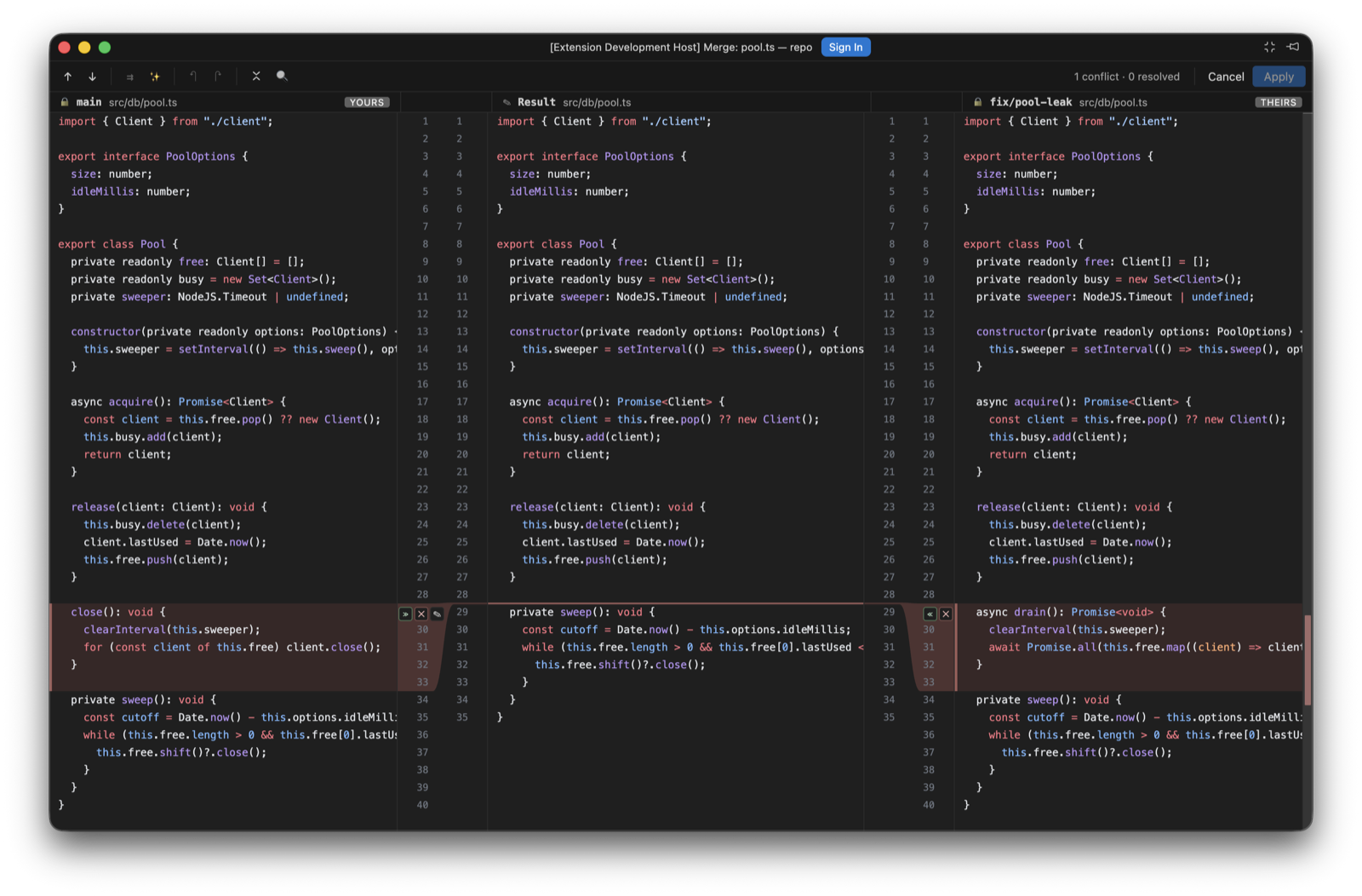
- The verbs ride the gutter connectors: accept (
≫/≪), ignore, revert to base. Accepting the second side after the first gives you both, IntelliJ-style. - The Result pane is a real editor. Click anywhere and type; typing inside a conflict resolves it. Selection, clipboard, IME composition and word movement all work, and one undo/redo timeline covers typed edits and gutter verbs alike.
- A side that's still takeable stays red, with its connector tapering to the exact row an accept would splice at. A side that landed, or a conflict resolved by typing, goes green.
- Apply non-conflicting changes takes every region only one side touched. Resolve automatically combines both sides wherever their edits hit different base lines, and deliberately leaves anything overlapping for you.
- Conflict stepping, collapse of unchanged regions and per-pane find (⌘F) come with the shared diff stack. A collapsed run opens in stages from the end nearest the caret, as in the diff viewer; the merge's separators carry the count alone.
- Apply stays disabled until every conflict is resolved. Cancelling confirms first.
Porcelain also registers with VS Code's Source Control view, so a conflicted file there offers Open in Porcelain Merge Editor, and conflicts raised by a terminal merge land in the same places.